
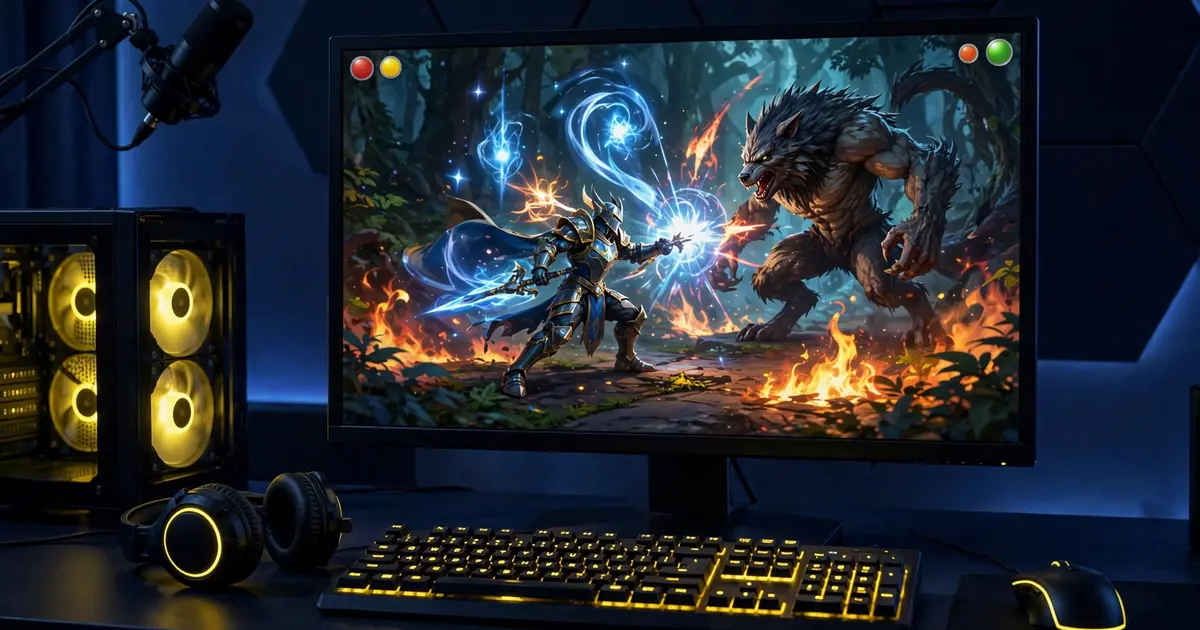
Why run it on PC
A big screen makes the dashboard genuinely pleasant: menus are roomier, typing IDs is easier, and screenshots for troubleshooting are one keypress away. Some players also prefer keeping tools off their daily phone.
Setup in five minutes
Install a mainstream Android emulator and create a virtual device on Android 7 or newer. Drag the v98 APK into the emulator window or use its install APK button. Open the app, grant permissions, and bind exactly as on a phone.
What differs on PC
Verification codes still go to your phone number, so keep your phone nearby. Performance is usually better than on budget hardware, but emulator quirks can occasionally confuse permission prompts; granting them twice normally sticks. The low end optimization guide has the same spirit for weak hardware, and the battery notes obviously matter less on a plugged in PC.
Is it allowed
Emulators are legitimate Android environments. The usual account caution from the ban risk guide still applies to whatever account you bind.