
What changed in Android 14
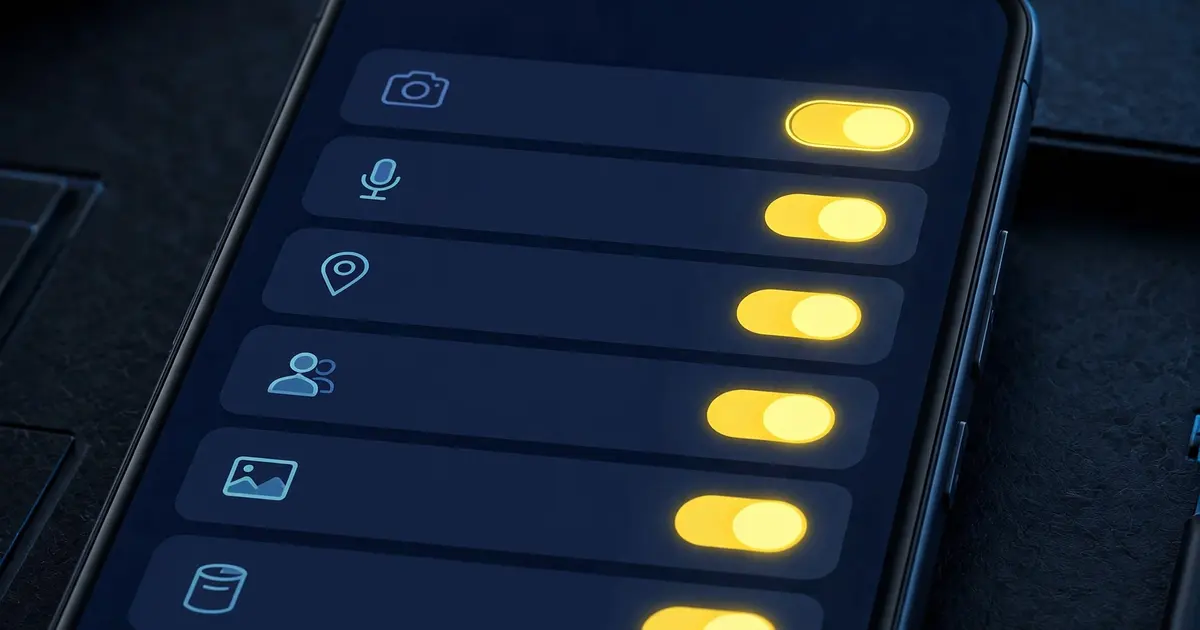
Android 14 introduced restricted settings: sideloaded apps cannot enable certain powerful permissions until you explicitly allow it. You will meet this on the app info screen, and it confuses everyone the first time.
The install flow on 14 and 15
Download the APK and install it normally. Then open the app info page for Unlock Beta FF, tap the three dot menu, and choose Allow restricted settings. Now grant the permissions the app requests. That one extra tap is the whole difference from older Android.
Common snags
If a permission toggle looks greyed out, you skipped the restricted settings step. Go back and allow it first. If the install itself is blocked, re-check that you allowed your browser to install apps; that is separate from restricted settings. The standard install guide covers the base flow and the fix list handles the rest.
After install
Everything from here is identical to older Android: bind, verify, explore the dashboard.