The dashboard idea
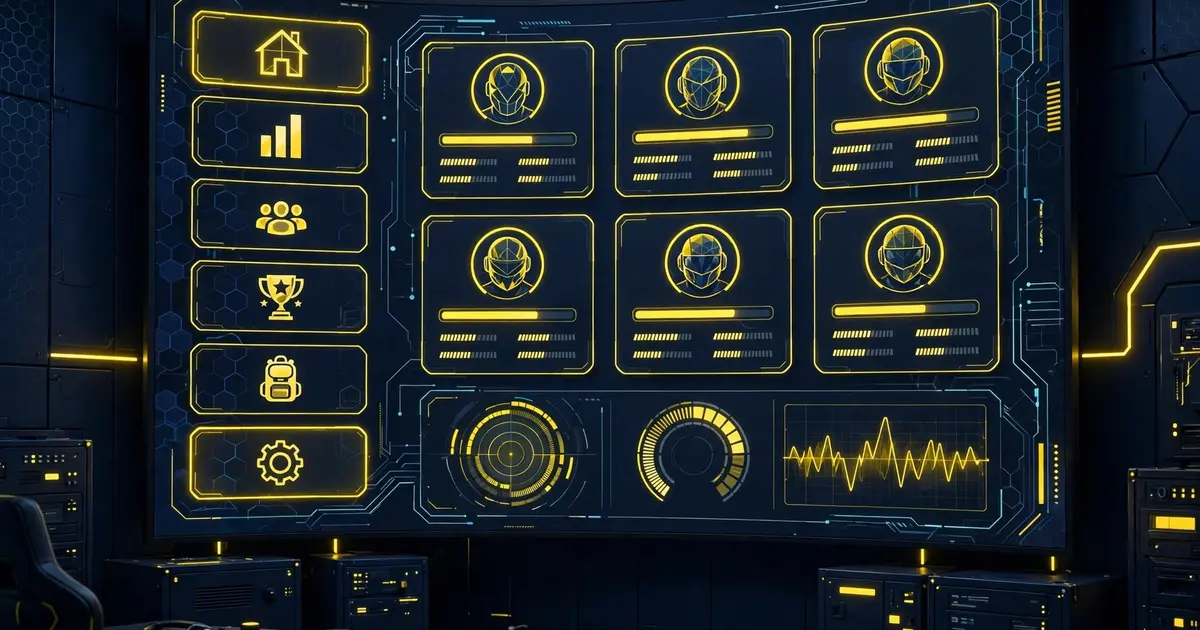
Instead of one static screen, Unlock Beta FF organizes its tools into dashboard sections you move between. Once your account is bound, the menus open up and each area handles a clear job.
Account access
The entry point. Binding, verification, and sign in live here. Everything else keys off this section, so finish it first using the binding guide.
Profile and presets
Edit your profile and save reusable presets. Presets are the quiet power feature: configure once, reapply in seconds. The presets guide shows the full workflow.
Social areas
Friends, ranks, and profile style controls. This is where the app feels most like a community hub rather than a utility.
Store, mail, and redeem
Store style menus, your inbox, redeem actions, and point based systems. The mail and redeem guide walks through claiming without missing anything.
Unlock and extra menus
The sections most players come for: unlock menus and extra utility controls. Explore them after binding, not before, so nothing appears locked for the wrong reason.
Learning the layout fast
Spend ten minutes tapping through each section once. The names are descriptive, and after one pass you will navigate it blindfolded.